

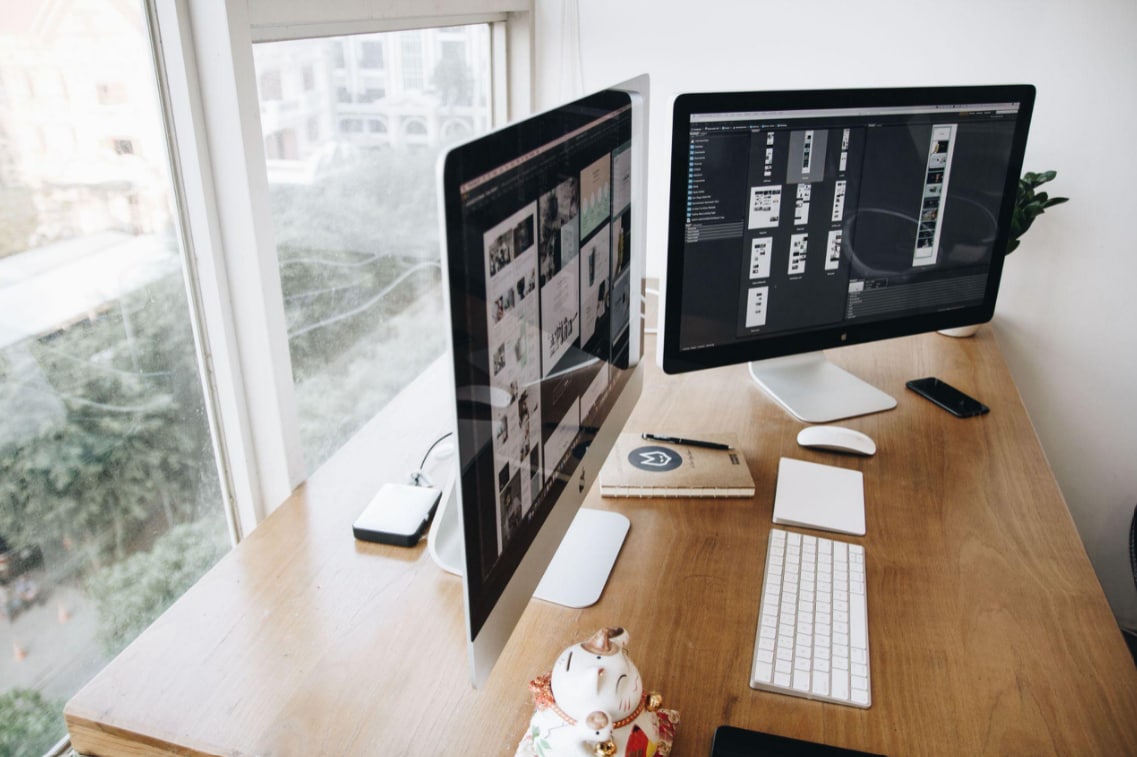
Two monitors can make working considerably easier. Whether you're analysing spreadsheets, editing videos, coding or comparing documents, having more screen space reduces the need to constantly switch between windows.
However, a dual-monitor setup can also introduce an ergonomic problem that many people overlook. Simply placing two screens side by side does not guarantee comfortable positioning.
The mistake is treating both monitors equally when you actually use one more than the other. This can leave your head turned towards one side for hours, placing unnecessary demands on the neck and shoulders.
A well-designed setup considers screen priority, viewing angles, distance and adjustability. Getting these details right can make dual-screen working feel considerably more comfortable.
The Biggest Dual Monitor Mistake: Poor Screen Alignment
The most important question is not whether your monitors look symmetrical. It is how frequently you use each screen.
Identify your primary monitor
Most people have one screen where the majority of their work happens.
For example, a writer might keep a document open on the main screen while using the second for research. A programmer may work primarily in one coding window while displaying documentation elsewhere.
If one monitor receives most of your attention, position it directly in front of your normal seated position.
The Canadian Centre for Occupational Health and Safety recommends centring the primary monitor and placing the secondary screen beside it at an angle.
Why symmetrical placement can still cause discomfort
Imagine two identical monitors placed evenly across your desk, with their inner edges meeting directly in front of you.
This arrangement looks balanced. However, if you spend most of the day looking at the left monitor, your neck may remain turned towards that side.
Over time, sustained neck rotation can contribute to discomfort and muscular fatigue.
The solution is to arrange the screens according to how you work rather than how the desk looks.
Understand the 20-Degree Rule
Monitor angles influence how easily you can view information without turning your head excessively.
Angle the screens towards you
For equally used monitors, a shallow V-shaped arrangement generally works well.
Guidance from the University of Arkansas for Medical Sciences recommends positioning dual monitors in a slight V shape, approximately 20 to 30 degrees.
This creates a more natural viewing arrangement than two large screens positioned in one completely straight line.
However, the angle should be adjusted according to monitor size, viewing distance and personal comfort.
Keep your main work within easy view
If one screen is dominant, keep that monitor centred and angle the secondary display towards you.
You should be able to glance at the second screen without repeatedly twisting your neck or upper body.
Avoid confusing viewing angles
The 20-degree suggestion describes the inward angle between your viewing position and the monitor arrangement.
It is different from the downward viewing angle used when deciding screen height. Neither measurement should be treated as a rigid universal requirement.
--altImgStart--{"link":"https://s3.springbeetle.eu/prod-eu-s3/commodity/item/Monitorhouder_d1d%20(7)_20261026_M64zX11b.jpg"}--altImgEnd--Position Both Monitors at the Correct Height
Height is just as important as horizontal positioning.
Keep the screens around eye level
The Occupational Safety and Health Administration recommends positioning monitors so the top of the screen sits at or slightly below eye level.
This allows users to look slightly downwards without repeatedly tilting the head backwards.
People who wear bifocal or varifocal lenses may need a lower screen position.
Match the height of both displays
Where possible, keep monitors at similar heights, particularly when switching between them frequently.
Different screen heights can create repeated up-and-down neck movements throughout the day.
If you use different monitor sizes, consider aligning the main viewing areas rather than simply matching their physical top edges.
Maintain a comfortable viewing distance
An arm's length is a useful starting point for screen distance, although larger displays and individual eyesight requirements may change the ideal position.
If you lean forwards to read, try increasing the text size before bringing the monitor closer.
Monitor Mount vs. Monitor Riser: Which Is Better?
Both options can improve screen positioning, but they offer different levels of flexibility.
Monitor risers offer simplicity
A monitor riser raises the display using a shelf or platform.
It can work well for a single fixed monitor, particularly when only a small height adjustment is needed.
However, risers provide limited flexibility when two screens need different angles or viewing distances.
Monitor mounts offer greater adjustability
A monitor mount allows the screen to be repositioned without relying on bulky desktop stands.
This can be especially useful for dual-monitor users who frequently adjust screen angles or share a workstation.
The FlexiSpot MA6 monitor mount is available in single- and dual-monitor configurations, providing adjustable mounting options for creating a more flexible workstation.
A dual-monitor mount can also free up desk space by removing traditional monitor stands. --altImgStart--{"link":"https://s3.springbeetle.eu/prod-eu-s3/commodity/item/Frame1321318228_20260618_gYRqktJ9_20261026_dRheCDR0.png","alt":"Standard Monitor Mount Series, Single & Dual (MA6)"}--altImgEnd--
Check compatibility before purchasing
Before choosing a monitor arm, confirm the screen's weight, size, mounting pattern and desk compatibility.
Also consider whether the desk provides enough depth for comfortable viewing.
An adjustable mount is only useful when the monitors can be positioned properly within the available workspace.
Why Dual Monitors Can Cause One-Sided Neck Pain
A poorly arranged workstation may encourage the same awkward movements throughout the day.
Repeatedly turning towards one screen
When the primary monitor is positioned off-centre, users may unconsciously rotate their heads towards it.
The OSHA workstation guidance identifies prolonged head and neck rotation as a potential source of muscular fatigue and discomfort.
Reaching towards the secondary screen
Monitor positioning can also affect keyboard and mouse placement.
If your body shifts towards one display while your keyboard remains elsewhere, you may develop awkward shoulder or wrist positions.
Keep your main keyboard and mouse aligned with your primary working position.
Ignoring posture changes
Even an ergonomically arranged workstation cannot eliminate the need for movement.
Take regular screen breaks, change position and avoid remaining fixed in one posture throughout the day.
--altImgStart--{"link":"https://s3.springbeetle.eu/prod-eu-s3/commodity/item/Screenshot%202026-10-26%20155804_20261026_AvgehV6N.png","alt":"Standard Monitor Mount Series, Single & Dual (MA6)"}--altImgEnd--
How to Set Up Your Dual Monitors Correctly
A few practical adjustments can improve the overall arrangement.
Step 1: Identify how you divide your work
Estimate whether one monitor receives most of your attention or whether both are used equally.
This determines which layout is most appropriate.
Step 2: Position the screens
Centre the primary monitor if it is used most frequently.
For equally used displays, centre the meeting point between the monitors and angle them slightly towards you.
Step 3: Adjust height and distance
Keep the screens at comfortable viewing heights and similar distances from your eyes.
Avoid arranging one monitor considerably closer than the other unless your work specifically requires it.
Step 4: Test the arrangement
Work normally for a short period and notice whether you repeatedly turn your head, lean forwards or adjust your shoulders.
Make small changes until the setup feels natural.
Final Thoughts
Dual monitors can improve productivity, but their arrangement should reflect how you actually work.
The biggest mistake is prioritising visual symmetry over comfortable screen positioning. If one monitor is used most often, keep it centred. If both are used equally, a shallow V-shaped arrangement can reduce unnecessary head movement.
Correct screen height, comfortable viewing distance and suitable workstation accessories also make a difference.
An adjustable monitor mount such as the MA6 can help create a flexible dual-screen setup, particularly when different screen positions are needed.
Ultimately, the best workstation is not necessarily the most impressive-looking one. It is the arrangement that allows you to work comfortably without constantly adjusting your neck, shoulders or posture.


_20260602_cc9a7609.png)


